How to check who links to your site, for free, and what the reports leave out
Find who links to your site for free with Search Console and Bing Webmaster Tools, export the full list, and learn what these free reports cannot show you.
On this page
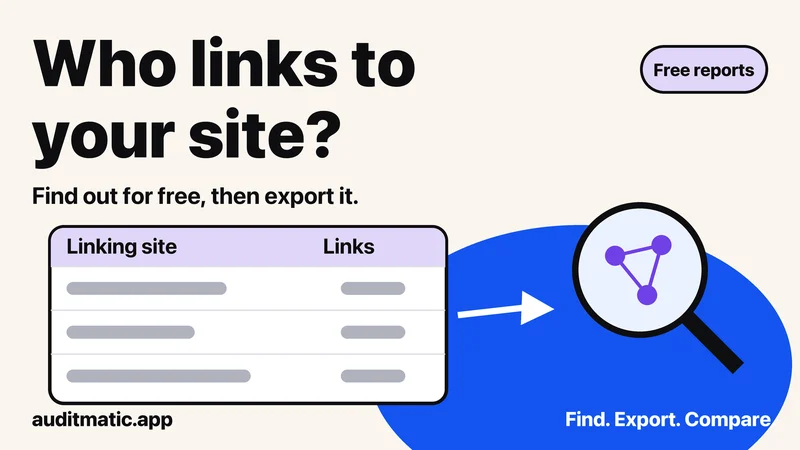
The fastest free way to see who links to your site is the Links report in Google Search Console. It lists the sites that link to you, the pages they link to and the words they use, and you can export it. It is a sample and not a full record, so this guide also covers the second and third free sources, how to save the data before you need it, and what to do with the list once you have it.
Where to find the Links report
You need your site verified in Search Console. If it is not, add it as a property first. Then:
- Choose your property in the property selector.
- Open Links in the left menu.
- Under External links, read the three tables: top linked pages, top linking sites and top linking text.
- Select More under a table to open the longer list. Selecting a row shows the other side of the relationship: the pages on one site that link to you, or the sites that link to one of your pages.
The same report also has an Internal links section, which shows how your own pages link to each other. It answers a different question, so ignore it for now.
What the three tables tell you
| Table | Question it answers | How to use it |
|---|---|---|
| Top linked pages | Which of my pages earn links? | Look at what these pages have in common. They show what other sites find worth citing. |
| Top linking sites | Who links to me most? | Check for sites you did not expect, and for a few sites that account for most of your links. |
| Top linking text | What do people call my page? | The words in the link, matched exactly and ignoring case. A link made from an image shows as empty. |
Google groups linking sites by root domain. A link from blog.example.com and one from example.com both count under example.com, and pages are grouped by their canonical address. That grouping is useful: it means the list is already close to a count of referring sites, which is the number that matters more than the total number of links.
Export it before you need it
On screen, each table shows at most 1,000 rows, and long lists can be cut. To get more, use the export button on the main Links page. Google offers two exports, each up to 100,000 rows:
- Latest links sorts by the date Google discovered the link, so it is the one to use for finding new links.
- More sample links is a sample drawn from the full set, so it gives a broader view of older links.
Exporting a single table gives you up to 1,000 rows. You can download a CSV file or open the data in Google Sheets. Google does not say how long it keeps the data, so treat the report as something to copy, not something to rely on being there later. Export both lists once a month and keep the files with a date in the name. Two exports a few months apart let you see which links appeared and which disappeared.
What the report does not show
Search Console tells you that a link exists. It does not tell you whether the link is any good.
- No nofollow label. The report does not say whether a link is marked nofollow. To check one, open the linking page, view its source and find the link.
- No spam filter. Google says known spam sites are normally ignored, but the report does not label them. A strange site in the list is not proof of a problem.
- It is a sample. Google describes the data as a sample of the links it has found, and some addresses can be left out, for example pages that are not indexed.
- New links take time. A link on a page Google has not crawled yet will not appear.
Add Bing Webmaster Tools as a second source
Bing Webmaster Tools is free and shows its own view of the links to a site you have verified. Search engines crawl differently, so the two lists rarely match. A site that appears in both is a link you can be confident exists, and a site that appears in only one is worth a look. Verify your site there once and the report fills in as Bing crawls.
Find links the reports miss
Two checks find links that neither search engine has reported yet.
- Referral traffic. Open the referrals or sources report in your analytics tool. Any site that sends visitors is linking to you, whatever Search Console says. This also shows which links bring people, which a link list alone cannot.
- Unlinked mentions. Search for your brand and domain name in quotes. Pages that name you without linking are the easiest links to ask for: the writer already knows who you are.
When a free report is not enough
Search Console and Bing only show links to your own verified site. To see who links to a competitor, or to get a quality view of your own links, you need a backlink index, which is a crawl of the web that the tool maintains itself. Free checkers from SEO vendors usually show a small sample of that index, with the full list behind a paid plan. Our own backlink tools sit on paid plans too, and an AI agent can read them for you, as covered on the backlinks feature page. For most small sites, the two free reports are enough to start.
What to do with the list
- Count sites, not links. One site linking fifty times is one source. See why referring domains beat backlink counts.
- Check where the links land. If a good link points at a page that redirects or no longer exists, the value is lost. Fix the target or redirect it to the closest live page.
- Look at your most linked pages. The pages that earn links show which topics and formats work for you. Write more of those.
- Ask for the missing link. For each unlinked mention, send a short, polite note that names the page and the address to link to.
- Review the odd ones. Open a few of the strangest sites. You rarely need to do anything, and the full process is in how to audit your backlinks and decide what to do next.
Check that your link data is complete
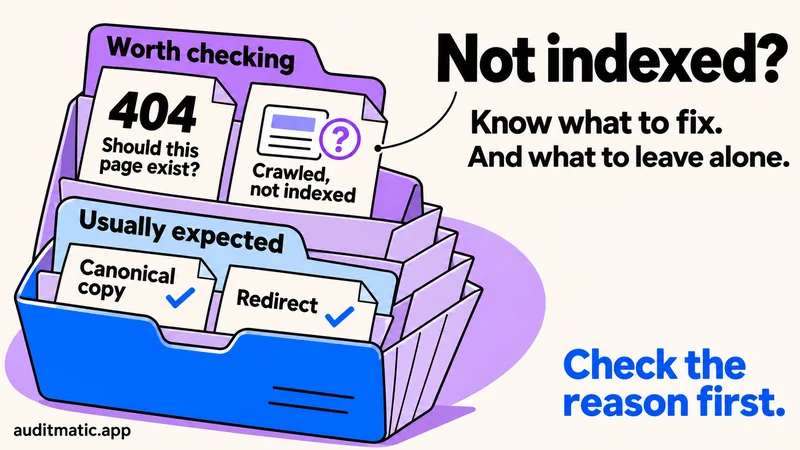
If Search Console lists no links for a site that is clearly linked, the page is probably new. Google has to crawl the page that links to you before it can report it, and it has to index your page to credit it. Make sure your own pages are in the index first, using our guide to pages that are not indexed. If you want the numbers in a script or a dashboard, the Search Console API guide covers what you can pull out and an agent can help with the rest, as in how to run an SEO audit with Claude Code.
Frequently asked questions
Is the Search Console Links report complete?
No. Google describes it as a sample of the links it has found, and some pages can be left out. Use it to see patterns and to find new links, not to count every link to your site.
Why does my link count differ between tools?
Every tool crawls its own copy of the web, on its own schedule, and counts links in its own way. Compare referring sites, not totals, and expect the lists to overlap without matching.
How often should I check my backlinks?
Monthly is enough for most sites. Export the Latest links list each time and compare it with the last one to see what is new.
Can I see whether a link is nofollow?
Not in Search Console. Open the page that links to you, view the source and look at the link tag for a nofollow, sponsored or ugc value.
Start with the pages Google can reach
Links only help if the pages they point to load and can be indexed. An audit finds the broken and blocked pages on your site that waste a link.